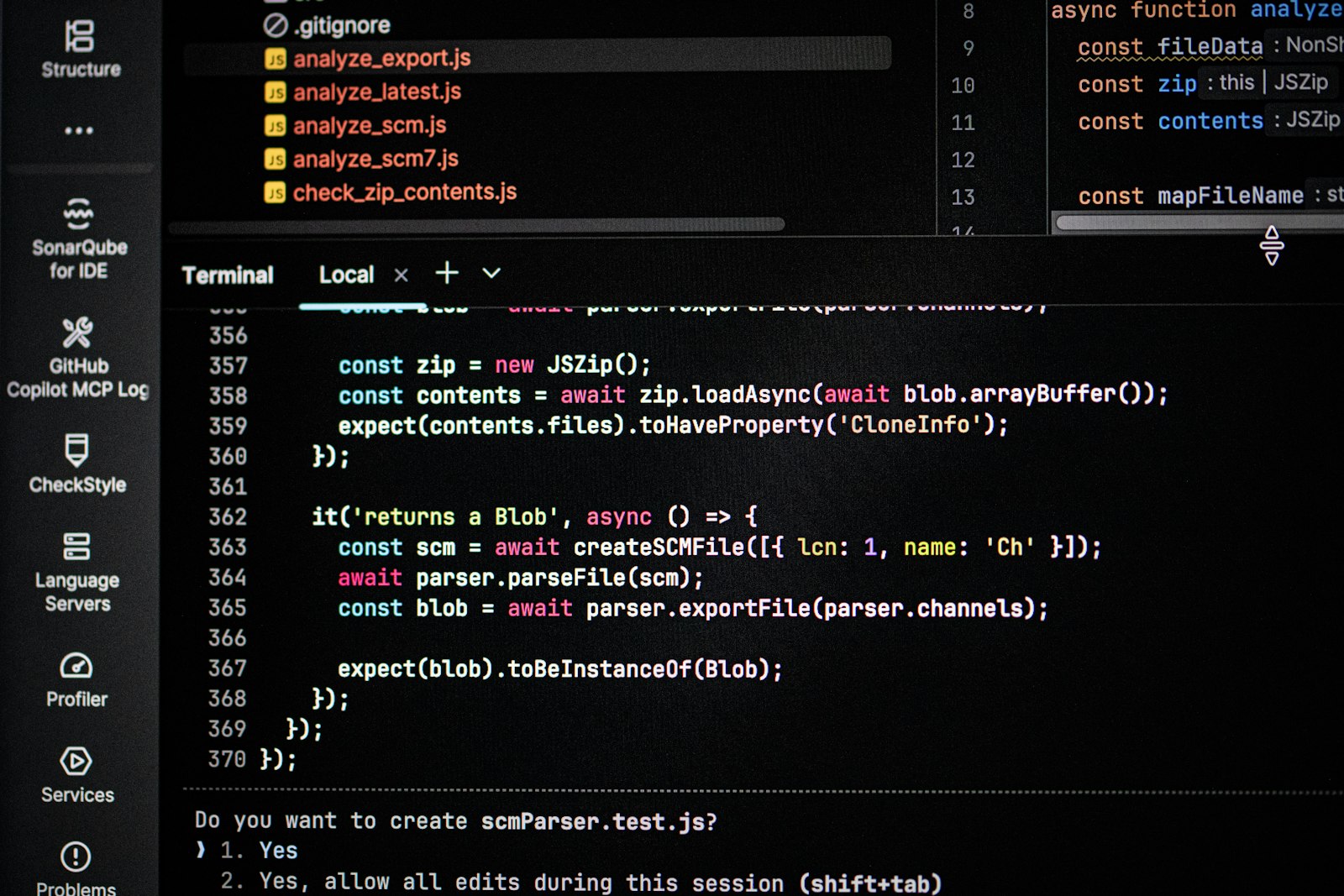
The first time I opened the terminal, I felt like I was about to break my computer.
Black screen. Blinking cursor. No buttons. No menus. Nothing telling me what to do next.
Every movie hacker I’d ever seen flashed through my head. And I thought: this is not for me.
I was wrong. And if you’re trying to use Claude Code — or any serious AI tool — and the terminal is the thing stopping you, this post is for you.
The reframe that changed everything
Here’s the mental shift that made it click for me:
The terminal is just texting your computer.
That’s it. Instead of clicking on things, you type what you want. The computer types back. It’s a conversation — just an old-fashioned one, invented before the mouse existed.
You already know how to text. You already know how to talk to Claude. The terminal is the same skill with a different vocabulary.
So let’s learn the vocabulary.
The starter glossary
You don’t need to memorize hundreds of commands. These cover 90% of what you’ll actually do:
Terminal — The app itself. The window where you type. On Mac it’s called Terminal. On Windows, use PowerShell or Command Prompt.
Command — Anything you type and hit Enter on. That’s it. That’s a command.
Directory — A folder. Same thing, older name.
Path — The address of a file or folder. Like /Users/warren/Documents/projects. Read it left to right, like a street address.
Home directory — Your personal starting folder. The shortcut for it is ~ (the squiggle). You’ll see it everywhere.
pwd — “Print working directory.” Asks: where am I right now? The computer tells you. Use this constantly.
ls — “List.” Shows you what’s in the folder you’re standing in.
cd — “Change directory.” How you move around. cd Documents walks into your Documents folder. cd .. steps back out.
mkdir — “Make directory.” Creates a new folder.
Flag — The extra options after a command, usually starting with a dash. ls -a means “list everything, including hidden files.” The -a is the flag.
Tab completion — Start typing a name, hit Tab, and the terminal finishes it for you. This is the single best trick nobody tells beginners.
Up arrow — Brings back your last command. Hit it again for the one before that. You will use this a thousand times.
Five best practices from a non-programmer
1. Always know where you are.
Type pwd before you do anything. Half of all beginner confusion is just being in the wrong folder.
2. Let Tab do the typing.
Typos are the #1 source of errors. Tab completion can’t misspell.
3. Copy-paste is not cheating.
Nobody types long commands by hand. Paste them. Everyone does.
4. You’re harder to break than you think.
Reading files, listing folders, moving around — none of it can hurt anything. The genuinely dangerous commands are rare, and you’ll know them when you see them. Until then, explore freely.
5. When you’re stuck, ask Claude.
This is the cheat code our generation gets. Paste the error message. Ask “what does this command do before I run it?” You have a patient expert sitting right there. Use it.
Why this matters
The terminal is the front door to the most powerful AI tools available right now. Claude Code lives there. Most serious automation lives there.
The people who get comfortable with that blinking cursor — even just the basics above — are going to move faster than the people who wait for someone to build them a button.
You don’t need a CS degree. I don’t have one.
You need a glossary, five habits, and the willingness to feel dumb for about twenty minutes.
That’s the whole price of admission.
— Warren